Purchased January 2006
Macro mode vs Digital Zoom
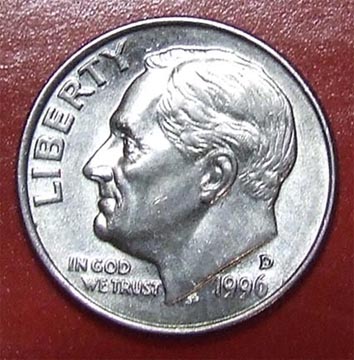


The picture on the left was taken using the standard (default) color mode. The picture on the right was taken in "chrome" mode, which gives more saturation of colors. There really is a noticeable difference, though in most situations I prefer the "standard" mode for more natural colors.
To access this function, have the camera set on "camera" mode, press the "f" button, and scroll down to the bottom of the menu. You'll see Standard, C(hrome) & B(lack & White). Select the C for Chrome mode.
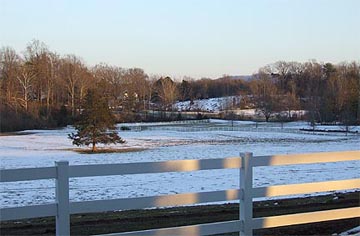

These were the first comparison shots I took after getting the camera, trying out the 10x optical zoom. It's pretty amazing!
And while you really should use a tripod when using the digital zoom (and better lighting wouldn't hurt!), these pictures compare normal, 10x optical and digital zoom images. To access the digital zoom, have the camera set on "camera" mode, press "menu" and keep scrolling down until you see "digital zoom" with the option of turning it on or off.

Normal setting, full image, natural light, reduced in size

10x optical zoom, full image, natural light, reduced in size

Full digital zoom, full image, natural light, reduced in size
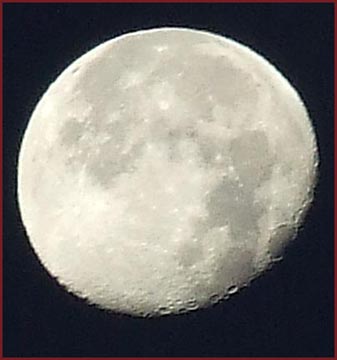
Hand-held (no tripod), digital zoom, natural light setting (cropped)
Dec. 5, 2006 7:15 a.m.

Hand-held (no tripod!), full digital zoom, natural light setting (cropped)
Dec. 7, 2006 7:00 a.m.


I was so excited when I saw how well this picture turned out, using the natural light setting. I was sitting a couple of rows back in a dark theater, taking pictures of our school's winter drama production. I didn't use a tripod, so in addition to the rich, warm colors the camera captured, I'm glad there was no blurring. Of course I used the zoom to move in on the girls, and this is a cropped version of the original.
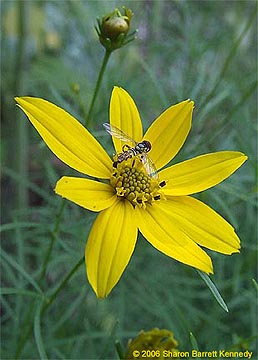
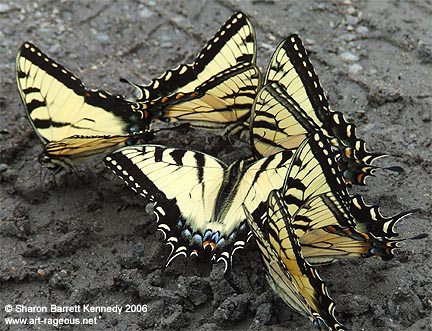
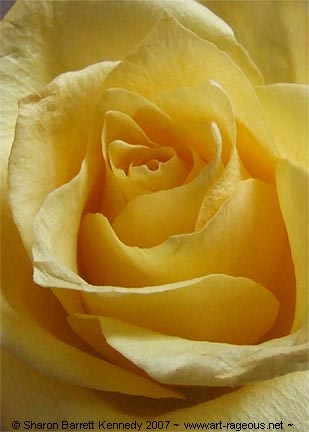
While the camera is better known for its zoom than its macro mode, I'm finding that it can do nice closeups, especially if you crop the "original." I'm still learning what all this means, but for what it's worth:
Exposure: 1/240 sec.
F-Stop: 3.2
ISO: 200



Last updated July 31, 2010